Enhancements to Room Move Reasons
Stay is enhanced to allow properties to create Room move reasons at the customer level and property level. Reasons created at the customer level are made available for all properties and can be made active or inactive based on the property’s preference.
To support this enhancement, two new options, Configure for Tenant and Configure for Property are added to the Room Move Settings section of the Room Move Reason screen (Settings ➜ All Settings ➜ Reservations ➜ Room Move Reasons). The created room move reasons will be displayed in the Reason for Room Move as a dropdown list in the Room Move Confirmation popup screen.
This is applicable only for users who have the two new permissions, StayWriteTenantRoomMoveReasons and StayWritePropertyRoomMoveReasons, added to their roles. These permissions are added to the following roles:
-
System Administrator
-
Stay Hotel Manager
-
Department Manager
If reasons are configured but set as inactive, those reasons will not be displayed in the Reason for Room Move dropdown.
Perform the following steps to create customer level room move reasons:
Click Configure for Tenant in the Room move reason screen.
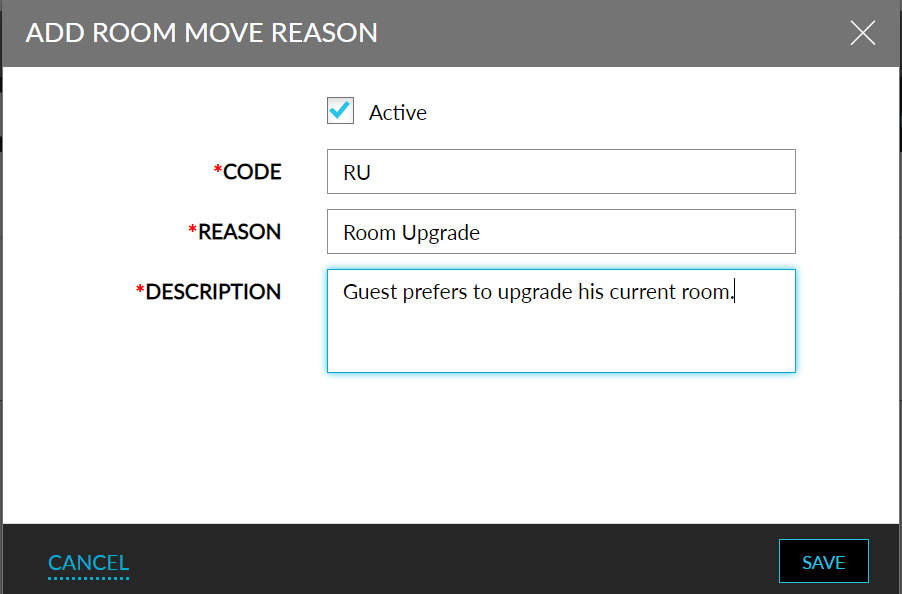
Click Add. The Add Room Move Reason screen will be displayed.
Refer to the table below and enter the values for the fields:
|
|
|---|---|
|
|
|
|
|
|
|
|
|
|
Click Save.
The Room Move Reasons can also be configured via the Stay Property Setup Tool. A new sheet, RoomMoveReasons, is added to the property import sheet. Refer to the following table and enter the values for the fields:
|
|
|---|---|
|
|
|
|
|
|
|
|
|
|
|
|
Users can import the sheet via the Stay Property Setup Tool (Settings ➜ All Settings ➜ General ➜ Property Import/Export), to import the Room Move Reasons to Stay.